Sfmcompile: The Essential Guide to Source Filmmaker Compilation and Better 3D Workflows
Understanding model compilation, QC scripts, Source files, textures, tools, and common SFM problems

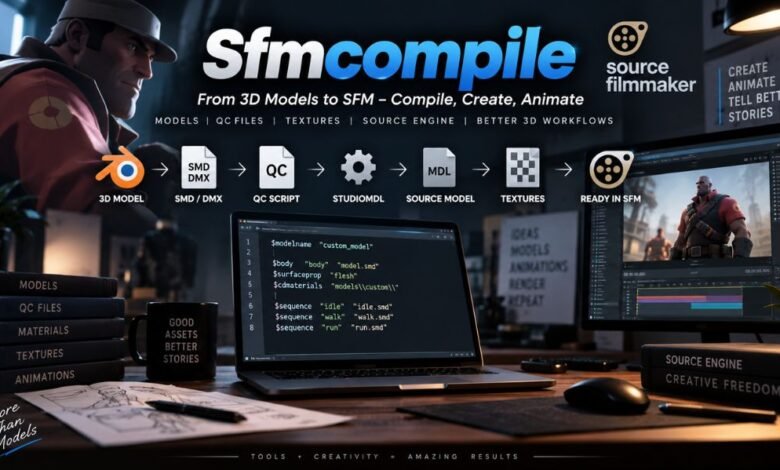
Source Filmmaker lets animators and 3D creators produce cinematic scenes, character animations, posters, and videos inside the Source engine. However, creators who want to move beyond existing assets eventually encounter a technical process commonly associated with Sfmcompile.
Sfmcompile generally refers to preparing and compiling Custom assets so that Source Filmmaker can recognize and use them correctly. A model created in Blender or another 3D application cannot always be placed directly into SFM. Its geometry, skeleton, materials, animations, and file paths must follow the structure the Source engine expects.
Understanding this process can make Custom model creation considerably easier. Instead of treating errors as mysterious failures, creators can examine each stage of the pipeline and identify where something has gone wrong.
What Is Sfmcompile?
Sfmcompile is essentially the process of converting prepared source assets into formats compatible with Source Filmmaker.
A typical workflow may look like this:
3D model → SMD or DMX files → QC script → model compiler → Source-compatible model → Source Filmmaker
The compilation stage connects a creator’s modeling software with the Source engine.
SFM uses specific model formats and directory structures. As a result, files exported from standard 3D programs usually need extra preparation to work correctly in Source Filmmaker.
Why Sfmcompile Is Important
Compilation performs more than a simple file conversion. It tells the engine how to interpret a Custom asset.
During the process, important information can include:
- Model geometry
- Bone hierarchy
- Material paths
- Animation sequences
- Model names
- Texture references
- Physics information
- Body groups
You can then load and manipulate a correctly prepared model within an SFM project.
Understanding the Main Files Used in SFM Compile
Learning the purpose of different Source files makes troubleshooting much easier.
SMD and DMX Files
SMD and DMX are commonly encountered when preparing Custom Source models.
They can contain information related to a model’s geometry, skeleton, and animation data. These files act as intermediate assets between the original modeling project and the final compiled model.
For example, a character created in Blender may first be exported to a Source-compatible format before the model compiler processes it.
The QC Script
The QC file is one of the most important elements of the Sfmcompile workflow.
A QC file is essentially a set of instructions for the compiler. It describes how the model should be assembled and where different resources belong.
What Can a QC File Define?
Depending on the model, a QC script may define the model name, mesh files, material directories, animation sequences, body groups, collision information, and other properties.
Even a small mistake in a QC script can stop compilation or produce a model that doesn’t function correctly.
For beginners, keeping the first QC file simple is usually best. Once the basic model works, you can add features gradually.
What Happens After an SFM Model Is Compiled?
Successful model compilation normally creates several connected files rather than one independent file.
The most recognizable is the MDL file, but supporting files may also contain vertex and rendering information.
MDL Files
The MDL is the primary model file the Source engine recognizes. It contains important information describing the compiled model.
VVD and VTX Files
VVD files hold vertex-related information, while VTX files contain data used for rendering and optimization.
These files work together. Moving only the MDL while leaving its required supporting files behind can result in an asset that fails to function correctly.
PHY Files
Some compiled assets may also include PHY files containing physics or collision information.
Whether you need this information depends on the model’s purpose and configuration.
Sfmcompile and Texture Preparation
A model can compile successfully and still appear incorrect inside Source Filmmaker.
This often happens because model compilation and material preparation are related but separate parts of the workflow.
VTF Textures
Source commonly uses VTF files for textures. A normal image used during model creation may therefore require conversion into an appropriate Source texture format.
VMT Material Files
A VMT file provides instructions about how a material should behave.
It can reference a texture and define properties that influence how the surface appears inside the engine.
Why Pink and Black Textures Appear
The familiar pink-and-black checkerboard usually indicates that the engine cannot locate or correctly load a required material or texture.
Possible causes include an incorrect material path, a missing VTF file, an incorrect VMT reference, or a misplaced folder.
Carefully checking paths often solves the problem faster than repeatedly recompiling the model.
Tools Commonly Associated With Sfmcompile
Several tools can appear in an SFM model-compilation workflow.
StudioMDL
StudioMDL is the Source model compiler. It processes model source files according to instructions contained in the QC script and produces engine-compatible model data.
Compiler output is especially valuable for troubleshooting because error messages can reveal missing files, invalid paths, unsupported settings, or model problems.
Crowbar
Crowbar is also widely known within Source modding communities. It provides a more convenient interface for tasks involving Source models, including compilation workflows.
Regardless of the tool, the underlying principle remains the same: correctly prepared source assets and instructions must be converted into files Source Filmmaker understands.
Common Sfmcompile Problems and Solutions
Compilation problems are normal, especially with Custom characters or complex rigs.
Model Does Not Appear in SFM
If the model does not appear, first confirm that compilation completed successfully. Then inspect the output location and verify that all required model files are stored in the correct directory.
Incorrect model paths often cause missing assets.
Model Appears in a T-Pose
A T-pose may indicate an animation, sequence, skeleton, or rigging problem.
Check the exported skeleton and make sure the QC script references the intended animation data.
Textures Are Missing
When geometry appears but textures don’t, focus on the material system instead of assuming the mesh is broken.
Verify the material directory, VMT references, VTF files, and file names.
Read the Compiler Log Carefully
One of the best Sfmcompile troubleshooting habits is reading compiler messages instead of ignoring them.
Warnings can provide useful clues even when compilation technically succeeds.
Fix problems one at a time. Changing several settings at once makes it harder to tell which change fixed or caused the issue.
Best Practices for a Better Sfmcompile Workflow
Good organization prevents many technical problems.
Keep source models, animations, materials, and scripts inside clearly named folders. Avoid unnecessary changes to directory structures during a project.
Test a basic version of the model before adding advanced animations, body groups, facial controls, or physics.
It also helps to keep backup copies of working QC scripts. If a later change causes compilation to fail, comparing it with an earlier version can quickly reveal the problem.
Sfmcompile for Beginners
Beginners should not try to master every Source feature immediately.
Start with a simple model containing basic geometry, a straightforward skeleton, one material, and a minimal sequence. Compile it and confirm that it appears correctly inside Source Filmmaker.
Once that pipeline works, gradually introduce more complex features.
Understanding the relationship between SMD or DMX files, QC scripts, StudioMDL, MDL files, VTF textures, and VMT materials provides a strong foundation for more advanced Source Filmmaker projects.
Frequently Asked Questions About Sfmcompile
What does Sfmcompile mean?
Sfmcompile commonly describes the workflow of preparing and compiling Custom assets into formats that Source Filmmaker and the Source engine can use.
Why does a model need compilation before using it in SFM?
Source Filmmaker expects specific engine-compatible model formats and structures. Raw files created by general 3D applications therefore usually require preparation and compilation.
What is a QC file in SFM?
A QC file is a script that tells the model compiler how to build, name, organize, and configure a Source model.
Why is my SFM model showing pink and black textures?
This generally indicates a material or texture problem. Check VMT files, VTF textures, material directory paths, file names, and references used by the model.
Is Sfmcompile the same as rendering an animation?
Not exactly. Asset compilation prepares models and related resources for the Source engine, while rendering produces the final frames, images, or video from an animation project.
Conclusion
SFMCompile becomes much easier once you understand the full Source Filmmaker pipeline. The process involves preparing models correctly, exporting suitable source files, creating accurate QC instructions, compiling the asset, organizing materials, and testing the result inside SFM.
Files such as SMD, DMX, MDL, VVD, VTX, VTF, and VMT may seem confusing at first, but each serves a specific purpose. By keeping projects organized, checking directory paths, reading compiler messages, and testing changes gradually, creators can solve many common SFM compilation problems without rebuilding projects from scratch.
For anyone interested in creating Custom Source Filmmaker characters, props, animations, or cinematic scenes, learning the SFM compile workflow is an important step toward building more reliable, professional 3D projects.